---
description: Send new feedback from ProdCamp to your slack channel
---
# Slack
### Connect your ProdCamp account to your Slack workspace follow these steps:
1\. Go to "Workspace Settings" by clicking the gear button in the top right corner of the screen.
2\. Click on the Integrations tab.
3\. Click on the Slack to expand it\
Connecting ProdCamp to Slack Workspace to receive feedback notifications
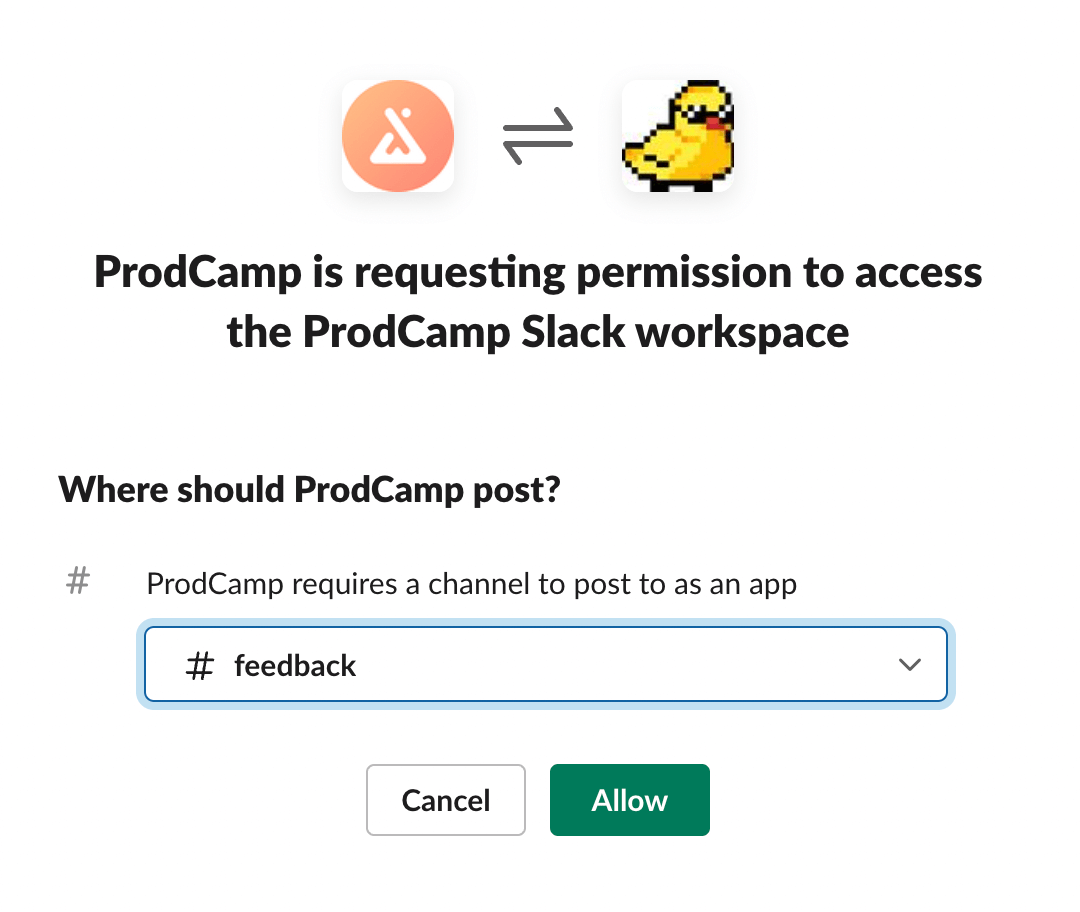
4\. Click on the "Connect" button and it will redirect you to the slack authorization page where you should choose a channel to which the ProdCamp slack app will post. And then click the "Allow" button.\
ProdCamp Slack integration oauth scope
#### Congratulations! Slack is now integrated to your workspace. 🙌